.png)
Create an Account
Getting started on Spilled Out is easy. This guide provides a step-by-step walkthrough on how to create an account, manage your login credentials, and secure your data with a Recovery Code.
What we’ll cover:
-
Setting up your username and password.
-
Saving your unique Recovery Code.
-
Completing (or skipping) your initial profile setup.
-
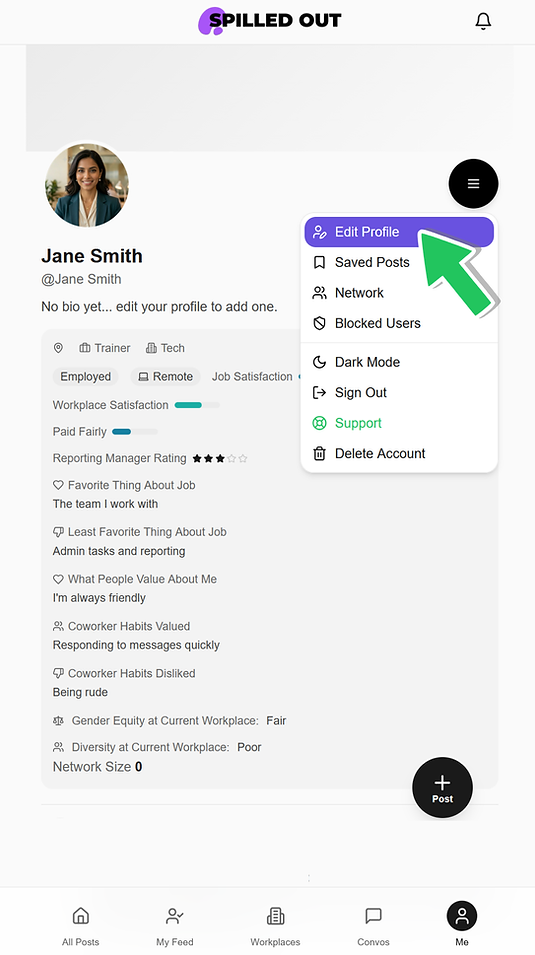
Finding and editing your profile within the app.
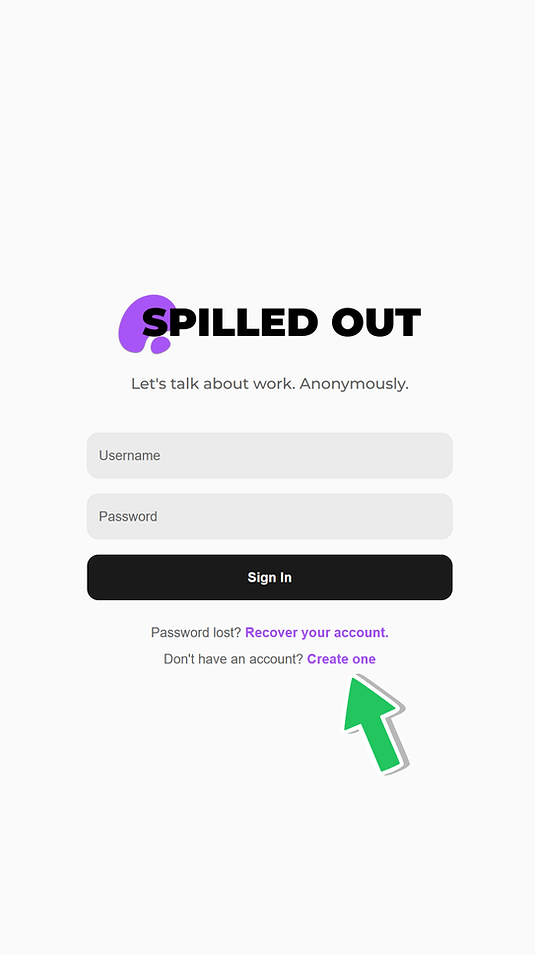
On the Log In screen, tap "Create One" at the bottom
-
On the Step 1 of 3 - Create your Login screen, enter your username and password. Please note: your password must be at least 6 characters long
-
Then tap the "Create Account" button at the bottom

-
On the Step 2 of 3 - Create your Login screen, you will be given a Recovery Code in case you forget your password.
-
Screenshot this screen and save it somewhere safe and/or
-
Tap Copy Recovery Code to copy it to your clipboard and save it somewhere safe.

-
Once you've save it, tap "I've Save My Code - Continue"

-
On the Step 3 of 3 - Complete Your Profile screen, you'll be able to enter general information about yourself. If you'd rather start using the app right away just tap "Skip" at the top right.

-
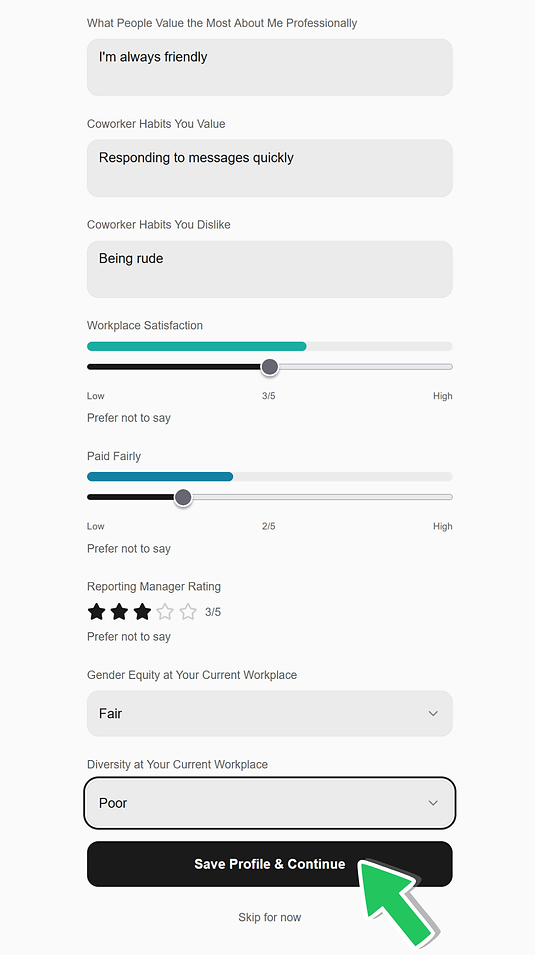
To Complete Your Profile, just enter information about yourself. If you want to remain anonymous, exercise good judgement. Consider leaving some information blank, such as your industry or job title.
-
Tap the arrowheads to reveal different options.

-
When you've finished completing your initial profile, tap "Save Profile and Continue" at the bottom.
-
You will be redirected to All Posts.
-
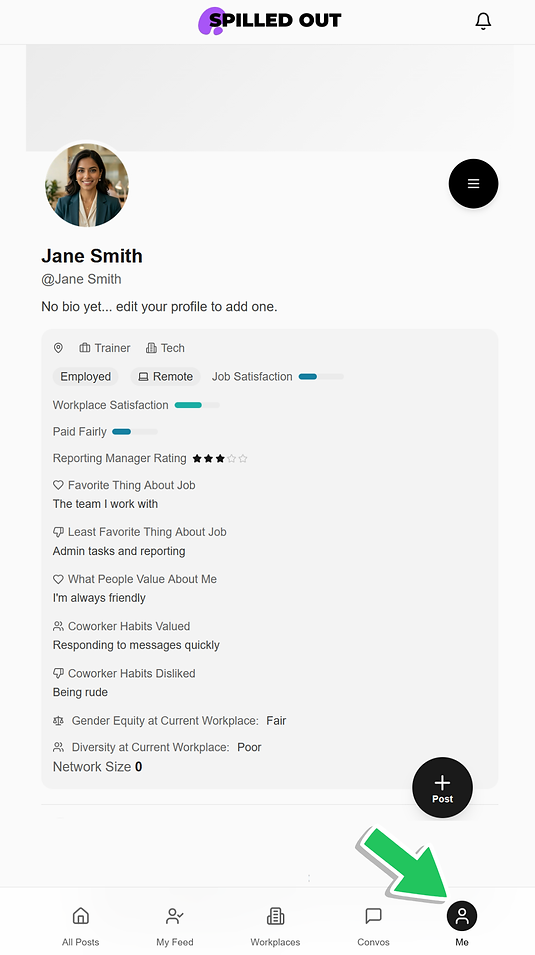
To view your profile, tap the "Me" icon at the bottom.